Don't miss our holiday offer - up to 50% OFF!
Sign up on Traccx: The Complete Guide for Buyers and Sellers in Kenya.

If you want to sign up on Traccx, this guide will show you how to join Kenya’s premier spare parts marketplace in less than five minutes. Whether you are a buyer looking for genuine engine components or a seller wanting to reach customers across all 47 counties, registration is 100% free.
Traccx connects car owners, mechanics, and spare parts dealers on one secure platform. By choosing to sign up on Traccx, you gain access to an easy-to-use interface optimized for M-Pesa payments and reliable logistics. This guide walks you through every single step of both registration processes so you know exactly what to expect.
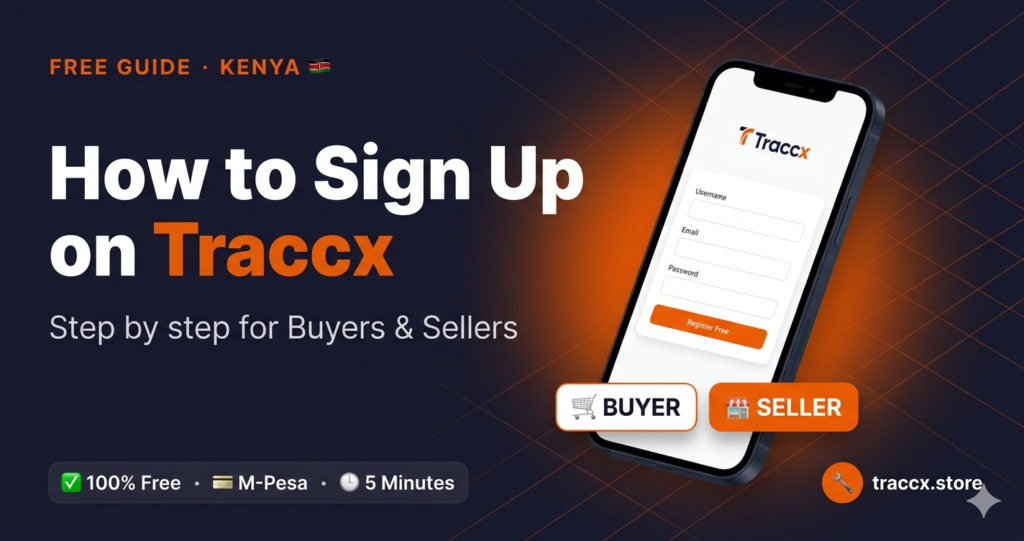
Table of Contents
| 🛒 PART ONE How to Sign Up as a BUYER For car owners, mechanics, and anyone who needs spare parts | 🏪 PART TWO How to Sign Up as a SELLER For spare parts dealers, garages, and importers |
🛒 PART ONE — How to Sign Up as a Buyer
If you own a car, ride a boda boda, operate a tuk tuk, drive a truck or matatu, or work in a garage — this section is for you. Creating a buyer account on Traccx gives you access to search for parts from verified vendors across Kenya, save items to your wishlist, track your orders, and manage your returns — all in one place.
Who Should Sign Up On Traccx Buyer Account
- Individual car owners in Mombasa and all 47 counties of Kenya
- Mechanics and garage owners who buy parts regularly for customers
- Boda boda riders and tuk tuk operators looking for genuine motorcycle and tuk tuk parts
- Truck drivers and matatu operators needing commercial vehicle parts
- Anyone who has been buying spare parts from Mwembe Tayari, Kirinyaga Road, or any physical market and wants a more convenient option
What You Need Before You Start
| Phone Number | A working Safaricom, Airtel, or Telkom number — preferably your M-Pesa registered number |
| Email Address | A working email address for order confirmations and account notifications |
| Password | A password you will remember — minimum 8 characters |
| Device | Any smartphone, tablet, or computer with internet access |
| Data | Less than 1MB of data needed to complete registration |
Step by Step — Buyer Registration
| 01 | Go to traccx.store Open your phone browser — Chrome, Firefox, or any browser. Type traccx.store in the address bar and press Go. The Traccx homepage will load. You will see the Parts Finder at the top of the page and the main navigation menu. |
| 02 | Click My Account Look at the top right corner of the page. You will see a person icon or the words My Account. Click on it. A login page will appear with two options — Login and Register. Since you do not have an account yet look for the Register section. |
| 03 | Fill in the Registration Form The registration form asks for three things: your username, your email address, and your password. Fill in each field carefully. |
USERNAME — Choose a username that is easy to remember. It does not have to be your real name. Examples: johnnbi, mombasa_driver, boda_henry. Your username appears on your account profile and in your order history.
💡 TIP: Use your first name and a number if you are not sure what username to pick — for example victor01 or sarah_ke. Keep it simple and avoid spaces.
EMAIL ADDRESS — Enter your real email address. Traccx sends your order confirmation, delivery updates, and account notifications to this address. Use an email you check regularly. If you do not have an email address create a free Gmail at gmail.com before registering.
⚠️ NOTE: Double-check your email address before submitting. A typo in your email means you will not receive order confirmations and cannot recover your password if you forget it.
PASSWORD — Create a strong password with at least 8 characters. Use a mix of letters and numbers. Example: Mombasa2025 or Traccx#01. Do not use your phone number or birthday as your password.
| 04 | Click Register After filling in all three fields click the Register button. Traccx will create your account immediately. You do not need to verify your email address to start browsing — your account is active right away. |
| 05 | Complete Your Profile After registration you are taken to your My Account dashboard. This is your personal area on Traccx. The first thing to do is complete your profile so deliveries reach you correctly. Click on Account Details or Edit Profile. |
Add the following information to your profile:
- First Name and Last Name — your real name for delivery purposes
- Phone Number — your M-Pesa registered number so vendors can contact you about orders
- Display Name — what other users see on the platform
| 06 | Add Your Delivery Address This is the most important step for receiving orders. In your My Account dashboard click Addresses. You will see two address fields — Billing Address and Shipping Address. |
For the Billing Address fill in:
- First and last name
- Phone number
- Street address — your estate name, road, or nearest landmark
- City — for example Mombasa or Nairobi
- County — select your county from the dropdown
- Country — Kenya
For the Shipping Address tick the box that says Same as Billing Address if your delivery address is the same as your billing address. If you want deliveries sent to a different location — for example your workplace — fill in the shipping address separately.
💡 TIP: Be as specific as possible with your address. Include your estate name, apartment number, nearest stage, or any landmark. The more specific your address the faster your delivery arrives.
| 07 | You Are Ready to Shop Your buyer account is now fully set up. You can now use the Parts Finder to search for spare parts by your vehicle’s Make, Model, and Year. Add items to your cart, proceed to checkout, and pay with M-Pesa STK Push directly on your phone. |
How to Search for Parts as a Buyer
Once your account is set up finding the right part for your vehicle takes three steps:
- Go to traccx.store and find the Parts Finder section on the homepage
- Select your vehicle Make from the first dropdown — for example Toyota, Nissan, Subaru, Honda
- Select your vehicle Model — for example Fielder, Tiida, Forester, Fit
- Select the Year — for example 2008, 2012, 2015
- Click Search or Find Parts
- Browse all compatible parts listed by verified vendors for your specific vehicle
💡 TIP: If you cannot find your exact part using the Parts Finder go to the Shop page and use the search bar. Type the part name directly — for example brake pads Toyota Fielder — and Traccx will show all matching listings.
How to Place an Order and Pay with M-Pesa
Once you find the part you need:
- Click on the product to see the full listing — photos, description, price, vendor name, and delivery options
- Click Add to Cart
- Review your cart — check the part name, quantity, and price
- Click Proceed to Checkout
- Confirm your delivery address — change it if needed for this specific order
- Select your payment method — choose M-Pesa
- Enter your M-Pesa phone number — it must be the number registered with Safaricom
- Click Place Order
- An M-Pesa STK Push notification appears on your phone — a pop-up asking you to enter your M-Pesa PIN
- Enter your M-Pesa PIN and confirm the payment
- Your order is confirmed — you receive an order confirmation email and an SMS
⚠️ NOTE: Do not close the browser while waiting for the M-Pesa STK Push. The push notification usually arrives within 10 to 30 seconds. If it does not arrive check that the phone number you entered matches your M-Pesa number exactly.
How to Track Your Order
After placing an order you can track its status at any time.
- Go to My Account > Orders
- Find your order in the list and click View
- The order status shows: Processing, Shipped, Out for Delivery, or Delivered
- You can also track using the Track My Order page at traccx.store/track-my-order — enter your Order ID and email address
💡 TIP: Your Order ID is in your confirmation email and in your My Account Orders list. It looks like #TRX-12345. Keep it saved in your WhatsApp notes for easy reference.
Buyer Account Features Summary
| Order History | View all past and current orders in one place |
| Wishlist | Save parts you want to buy later without adding to cart |
| Address Book | Store multiple delivery addresses — home, office, garage |
| Return Requests | Raise a return request directly from your order history within 7 days |
| Order Tracking | Track delivery status in real time from your dashboard |
| Account Settings | Update your name, phone, email, and password any time |
| Download Invoices | Download PDF invoices for any completed order |
| Saved Payment Info | M-Pesa number saved for faster checkout on future orders |
🏪 PART TWO — How to Sign Up as a Seller on Traccx
If you sell spare parts — whether you run a shop in Mwembe Tayari, import directly from Japan or China, operate a garage that sells parts, or have parts inventory sitting at home — registering as a vendor on Traccx gives you an online store that reaches buyers across all 47 counties in Kenya for free.
Registering as a vendor on Traccx is completely free. There is no monthly subscription, no listing fee, and no upfront cost. Traccx earns only when you earn — through a small commission on each completed sale. You keep the rest and receive your payout every Friday via M-Pesa.
Who Should Register as a Vendor
- Spare parts dealers with a physical shop — Mwembe Tayari, Kirinyaga Road, Kamukunji, or anywhere in Kenya
- Individual importers who bring in Japanese or Chinese vehicle parts directly
- Garage and workshop owners who sell parts alongside their repair services
- Motorcycle and boda boda parts specialists
- Truck and commercial vehicle parts dealers
- Anyone with genuine spare parts inventory who wants to sell online without building their own website
What It Costs to Sell on Traccx
| Registration Fee | KES 0 — completely free to register |
| Monthly Fee | KES 0 — no subscription or monthly charge |
| Listing Fee | KES 0 — list as many products as you want for free |
| Commission on Sales | Between 7% and 13% depending on product category |
| Payout Day | Every Friday via M-Pesa |
| Minimum Payout | KES 500 |
| Payout Method | M-Pesa directly to your registered number |
💡 TIP: If you sell a part for KES 1,000 and the commission is 10%, Traccx keeps KES 100 and transfers KES 900 to your M-Pesa on Friday. Your pricing strategy should factor in the commission when setting product prices.
What You Need Before You Start
| Phone Number | Your M-Pesa registered Safaricom number for payouts |
| Email Address | A working email for orders, notifications, and account recovery |
| Store Name | The name of your business or shop — this is what buyers see |
| Store Description | A brief description of what you sell — 2 to 3 sentences |
| Product Photos | Clear photos of your parts — minimum 1 photo per product |
| Product Prices | Your selling prices in KES including your margin after commission |
| ID or Business Name | For verification purposes during account approval |
| Bank or M-Pesa | Your M-Pesa number or bank details for receiving payouts |
Step by Step — Vendor Registration
| 01 | Go to the Vendor Registration Page Open your browser and go to traccx.store/vendor-registration. You can also reach this page from the homepage by clicking Sell on Traccx in the main menu, then clicking Register as a Vendor. |
| 02 | Fill in Your Basic Account Details The registration form asks for your account information first. Fill in all fields carefully. |
USERNAME — Choose a username for your vendor account. This is your login name and also forms part of your store URL. Example: if your username is mombasa_parts your store URL becomes traccx.store/store/mombasa_parts. Choose something related to your business name — keep it short, lowercase, and with no spaces. Use underscores instead of spaces.
EMAIL ADDRESS — Enter a working email address. All order notifications, customer messages, and payout confirmations go to this address. Use a business email if you have one — for example sales@yourshopname.com. If not a Gmail works fine.
PASSWORD — Create a strong password. You will use this every time you log into your vendor dashboard. Write it down somewhere safe.
FIRST NAME and LAST NAME — Enter your real name. This is used for verification and payout purposes.
| 03 | Set Up Your Store Details After your basic account information the form asks for your store setup details. This is what buyers will see when they visit your vendor profile on Traccx. |
STORE NAME — This is the public name of your shop on Traccx. It is what buyers see above your product listings and on your store page. Use your real business name if you have one — for example Changamwe Auto Parts or Mwembe Spares. If you do not have a business name use something descriptive like Victor Genuine Parts or Coast Auto Supplies.
💡 TIP: Your store name should communicate what you sell and where you are from. A name like Mombasa Genuine Toyota Parts is more trustworthy to buyers than just John Shop.
PHONE NUMBER — Enter your M-Pesa registered phone number. This is the number Traccx uses to process your weekly Friday payouts. It is also displayed on your vendor profile so buyers can contact you about orders. Make sure it is a working number you answer.
⚠️ NOTE: Your payout goes to this phone number every Friday. If you enter the wrong number your payment goes to the wrong person. Double-check this field before submitting.
STORE ADDRESS — Enter your physical location. This builds trust with buyers who want to know where the vendor is based. Enter your area — for example Changamwe, Mombasa or Mwembe Tayari, Mombasa CBD. You do not need to enter your exact physical address if you prefer not to.
| 04 | Accept the Terms and Conditions Before submitting your registration tick the checkbox to confirm you have read and agree to the Traccx vendor terms and conditions. These cover the commission structure, payout schedule, product listing rules, and counterfeit policy. |
The most important terms to know before registering:
- You may only list genuine parts — no counterfeits, no fake branded parts, no used parts sold as new
- All product photos must show the actual item being sold — no stock photos of different products
- You must fulfil orders within the timeframe stated in your listing
- Buyers have a 7-day return window if a part is wrong, defective, or counterfeit
- Vendors found selling counterfeits are permanently banned with no appeal
| 05 | Submit Your Registration Click the Register button at the bottom of the form. Your registration is submitted to the Traccx team for review and approval. You receive a confirmation email immediately to the address you registered with. |
The approval process typically takes between a few hours and 24 hours. During this time the Traccx team reviews your application to verify that you are a genuine spare parts seller. You may be contacted via WhatsApp or email for additional information during this period.
| 06 | Receive Your Approval Notification Once your vendor account is approved you receive an email and WhatsApp message from Traccx confirming that your store is live. The email contains a link to your vendor dashboard and instructions for listing your first product. |
💡 TIP: Follow the Traccx WhatsApp Business number so you receive your approval notification immediately. Go to wa.me/254702227906 and save the number to your contacts.
How to Set Up Your Vendor Store After Approval
Once approved log into your vendor dashboard at traccx.store with your username and password. Your dashboard is your control centre for everything — products, orders, payments, and settings.
Setting Up Your Store Profile
Before listing products spend 10 minutes completing your store profile. A complete profile builds buyer trust and sells more parts than an empty profile.
- Go to Vendor Dashboard > Settings > Store
- Upload a Store Banner — a wide image showing your shop front, your parts display, or any professional image representing your business. Size: 625 x 300 pixels recommended
- Upload a Store Logo — your business logo or a clear photo of your shop signage. Size: 300 x 300 pixels recommended
- Write a Store Description — 2 to 4 sentences describing what you sell, your location, and why buyers should choose you. Example: Genuine Toyota, Nissan and Subaru parts from our verified dealership in Changamwe, Mombasa. All parts inspected before listing. Fast delivery across Mombasa and the Coast region.
- Add your store address, phone number, and operating hours
- Link your social media pages if you have them — Facebook and WhatsApp Business
Listing Your First Product
Go to Vendor Dashboard > Products > Add New Product. Fill in every field as completely as possible. Listings with complete information sell significantly more than incomplete listings.
| Product Name | Be specific — include the vehicle compatibility. Example: Toyota Fielder 2008-2015 Front Brake Pads Genuine |
| Product Category | Select the most relevant category — Engine Parts, Brake System, Suspension, etc. |
| Product Price | Set your selling price in KES. Factor in the Traccx commission when pricing. |
| Sale Price | Optional — set a discounted price for promotions |
| Product Description | Describe the part in detail — compatibility, condition (new/used), brand, dimensions, and any installation notes |
| Product Photos | Upload a minimum of 3 clear photos — front, side, and part number visible. Good photos are the single biggest factor in converting a listing to a sale |
| SKU / Part Number | Enter the OEM part number if you know it — buyers often search by part number |
| Stock Quantity | Enter how many units you have. Traccx automatically marks as Out of Stock when quantity reaches zero |
| Shipping | Set your delivery zones and estimated delivery times for different counties |
| Weight | Enter the part weight in kilograms — used to calculate shipping costs |
💡 TIP: The most important thing on any product listing is the photos. A clear, well-lit photo of the actual part you are selling converts browsers into buyers. Take photos on a clean white surface in natural daylight. Show the part number label if visible.
How to Manage Orders as a Vendor
When a buyer places an order for your product you receive an email and SMS notification immediately. Log into your vendor dashboard to manage the order.
- Go to Vendor Dashboard > Orders
- Find the new order — it shows the buyer name, part ordered, quantity, and delivery address
- Confirm the order is in stock — click Processing to confirm you are preparing it
- Package the part securely
- Arrange delivery — contact the buyer via the platform messaging system or WhatsApp to coordinate
- Mark the order as Shipped once it is on its way — enter the tracking number if using a courier
- The order automatically moves to Completed when the buyer confirms receipt or after the delivery window closes
- Your earnings for the completed order appear in your vendor balance ready for Friday payout
⚠️ NOTE: Respond to new orders within 24 hours. Buyers who do not hear from a vendor within 24 hours of ordering frequently cancel and leave negative reviews. Fast response is your most important competitive advantage on the platform.
How Vendor Payouts Work
Traccx processes vendor payouts every Friday morning. Here is exactly how it works:
- Every completed order adds to your vendor balance in the dashboard
- On Friday morning Traccx processes all vendor balances that have reached the KES 500 minimum
- The payment is sent directly to your M-Pesa registered number
- You receive an M-Pesa confirmation SMS from the platform
- The payout appears in your Vendor Dashboard > Payments > Payout History
- If your balance is below KES 500 it rolls over to the following Friday
💡 TIP: Check your vendor dashboard every Friday morning to confirm your payout has been processed. If you have not received payment by Friday afternoon contact the Traccx team via WhatsApp or at vendors@traccx.store.
Vendor Dashboard Features Summary
| Products | Add, edit, and manage all your product listings |
| Orders | View and process all incoming customer orders |
| Payments | View your balance, commission deductions, and payout history |
| Reviews | See all customer reviews on your products and respond to them |
| Coupons | Create discount codes for your products to run promotions |
| Reports | View your sales analytics — top products, revenue trends, busy periods |
| Store Settings | Update your store profile, banner, logo, and contact details |
| Shipping | Set delivery zones, rates, and estimated delivery times |
| Followers | See which buyers are following your store |
| Support | Contact the Traccx vendor support team directly from the dashboard |
FREQUENTLY ASKED QUESTIONS
Questions from Buyers
Q: Is it free to create a buyer account on Traccx?
A: Yes. Creating a buyer account on Traccx is completely free. You pay nothing to register, browse, or add items to your wishlist. You only pay when you place an actual order.
Q: Do I need to create an account to browse products?
A: No. You can browse all products and categories on Traccx without creating an account. However you need an account to place an order, save items to your wishlist, and track deliveries.
Q: Can I pay with M-Pesa?
A: Yes. M-Pesa is the primary payment method on Traccx. When you checkout select M-Pesa and enter your phone number. An STK Push notification appears on your phone. Enter your M-Pesa PIN to complete the payment. The whole process takes under 30 seconds.
Q: What if the wrong part arrives?
A: Traccx has a 7-day return policy. If the wrong part arrives or the part is defective go to My Account > Orders > Find Your Order > Request Return. Fill in the return form with a description and photo of the issue. The Traccx team investigates within 24 hours and issues a full M-Pesa refund within 5 business days if the claim is valid.
Q: Can I order from Mombasa and get delivery upcountry?
A: Yes. Traccx delivers to all 47 counties in Kenya. Delivery timelines vary by vendor location and your destination. Most orders within Mombasa arrive in 1 to 2 days. Upcountry orders typically take 2 to 4 days.
Q: How do I know if a vendor is genuine?
A: Every vendor on Traccx is manually reviewed and approved before their store goes live. Look for vendors with completed profiles, product photos of actual items, and customer reviews. The Traccx verified badge on a vendor profile means they have passed our verification process.
Questions from Sellers
Q: Is it really free to register as a vendor?
A: Yes. Vendor registration on Traccx is 100% free. There is no registration fee, no monthly subscription, and no listing fee. You only pay a commission when you make a sale. If you make zero sales you pay zero to Traccx.
Q: How long does vendor approval take?
A: Most vendor applications are reviewed within a few hours to 24 hours. You receive an email and WhatsApp notification when your account is approved. During busy periods approval may take up to 48 hours.
Q: How many products can I list?
A: There is no limit on the number of products you can list on the free plan. List your entire inventory.
Q: What commission does Traccx charge?
A: Traccx charges between 7% and 13% commission depending on the product category. The exact commission rate for each category is shown in your vendor dashboard under Settings > Commission.
Q: When exactly do I receive my payout?
A: Payouts are processed every Friday morning. The M-Pesa transfer typically arrives between 8AM and 12PM EAT. You receive an M-Pesa SMS confirmation when the transfer is processed.
Q: Can I sell both new and used parts?
A: You can sell genuine used parts on Traccx provided they are clearly listed as used in the product description. Selling used parts as new or hiding the condition of a part is a violation of vendor terms and results in account suspension.
Q: What happens if a buyer returns a product?
A: If a buyer raises a valid return claim Traccx investigates the issue. If the return is upheld the buyer is refunded and the amount is deducted from your vendor balance. If the return is found to be invalid — for example the buyer changed their mind without a valid reason — the return may be declined at Traccx’s discretion. Full details are in the vendor terms and conditions.
Q: Can I have more than one store on Traccx?
A: Each vendor may operate one store per account. If you need a second store for a different business category contact the Traccx team at vendors@traccx.store to discuss options.
READY TO GET STARTED?
Both accounts are free. Both take less than 5 minutes to create.
| 🛒 Create a Buyer Account | traccx.store/my-account → Click Register |
| 🏪 Register as a Vendor | traccx.store/vendor-registration |
| 💬 WhatsApp Support | wa.me/254702227906 |
| 📧 Buyer Support Email | support@traccx.store |
| 📧 Vendor Support Email | vendors@traccx.store |
| 🌐 Website | traccx.store |
About the Author
Victor Marangu is the founder of Traccx.store and CEO of Brandscape Studio — a full-service creative and digital agency based in Mombasa, Kenya. He writes about building online businesses in Kenya, SEO strategy, and the Mombasa digital opportunity. Follow his journey at maranguvictor.online